



V2L Screenshot
Screenshots, recordings and the small jobs around them, from your Mac's menu bar.
V2L Screenshot lives in your Mac's menu bar. Take a screenshot and it waits in a corner of the screen: mark it up, copy it or save it, and anything you don't keep is deleted instead of piling up on your Desktop. Record your screen with your microphone and computer sound, trim the clip and add captions made on your Mac. Around that sit the small tools you reach for every day: notes, clipboard history, a folder tidier, a slide-out panel with recent shots, and Remote Access to use your Mac from your phone over Tailscale.
Requires macOS 14 or later. Screen recording needs macOS 15 or later. Some smart features need a Mac with Apple Intelligence on macOS 26 or later.
A whole toolbox, one menu bar icon
- Screenshots show as a small card to copy, save, mark up or drag out.
- Record your screen, a window or your camera, with sound if you want it.
- Trim and caption a recording without opening another app.
- Notes are plain files that sync through your own iCloud Drive.
- Tidy a messy folder: see the plan first, undo in one step.
- Clipboard history brings back what you copied earlier.
- Save videos from links you have the right to save.
- Smart features run on your Mac by default.
What it does today
 (opens the full-size picture in a new tab)
Screenshots
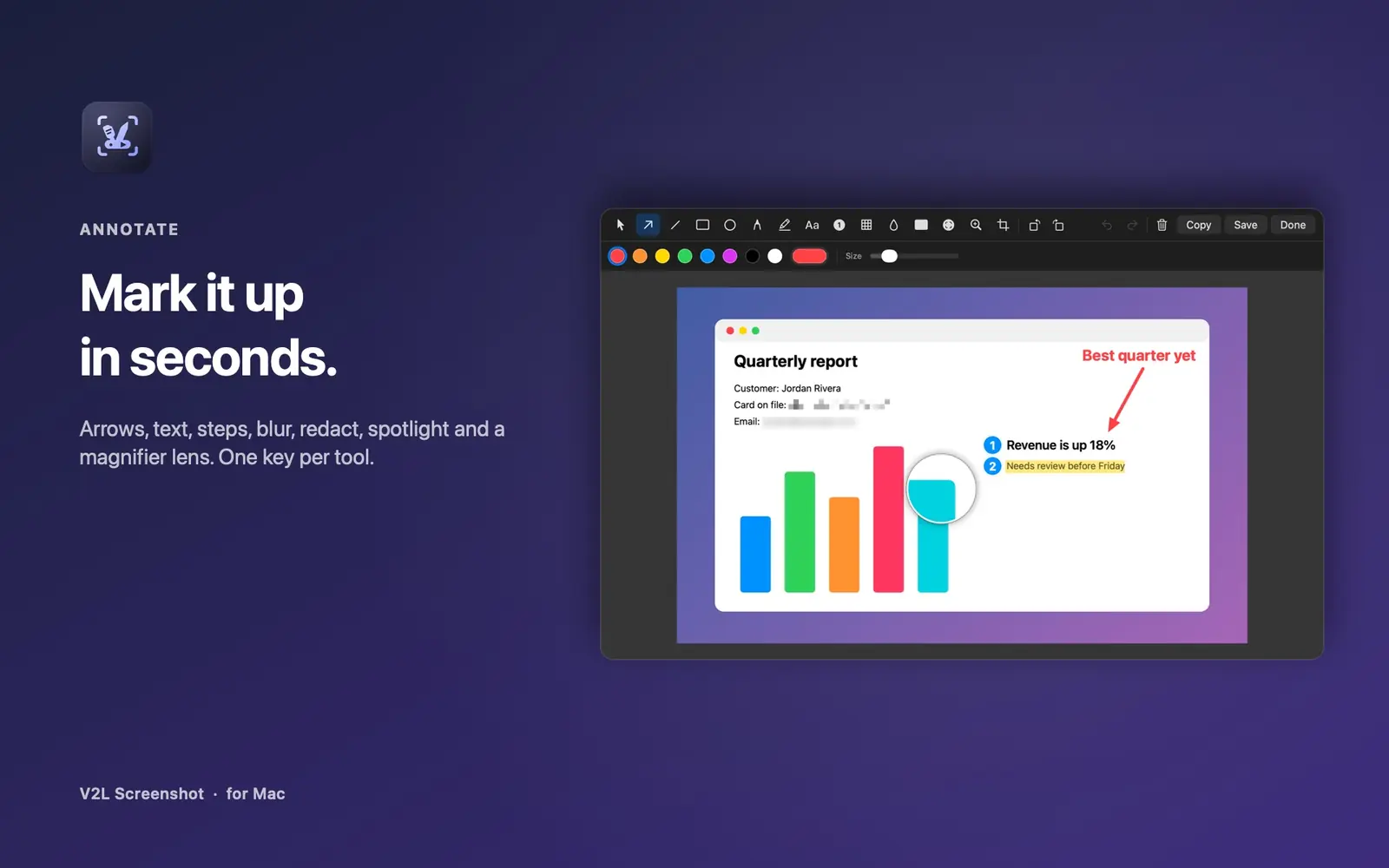
Capture an area, a window or the whole screen. A small card appears in the corner of your screen so you can copy it, save it, mark it up or drag it straight into another app.
- Capture a long page as one stitched screenshot, or pull text off the screen onto your clipboard.
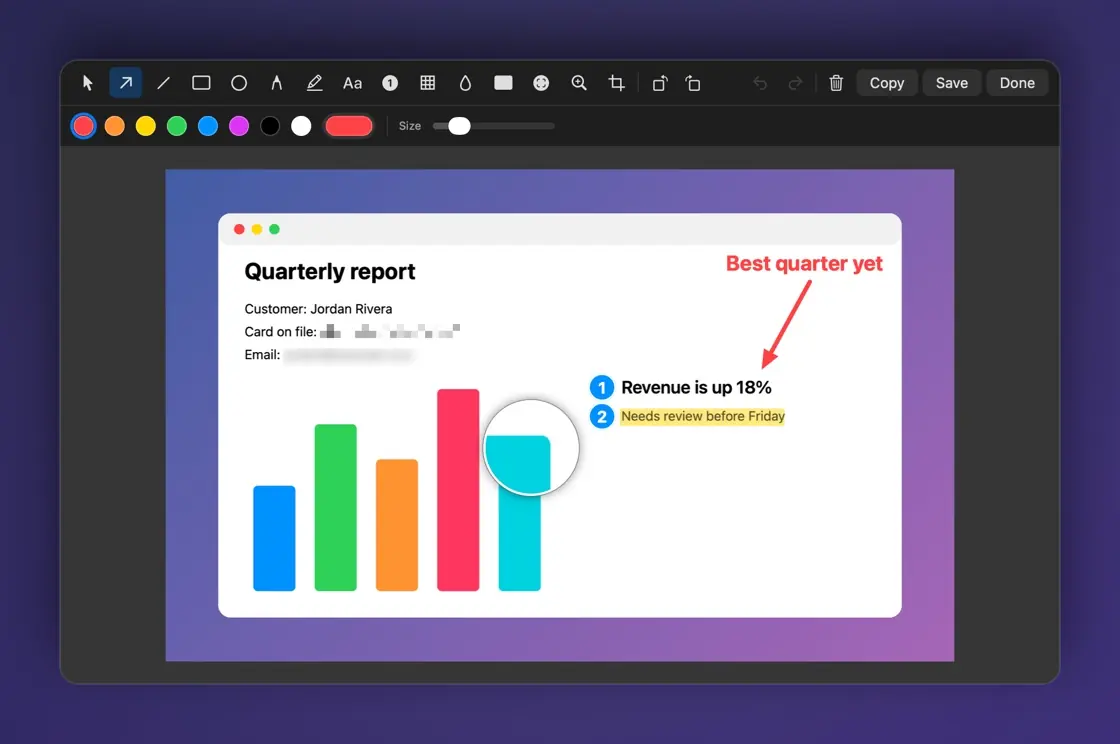
- Mark up with arrows, boxes, text, numbered steps, highlights, blur and redaction.
- Pin a shot on your screen, combine two shots, or copy one as a share card.
- A shot you don't save is never written to disk.
 (opens the full-size picture in a new tab)
Screen recording
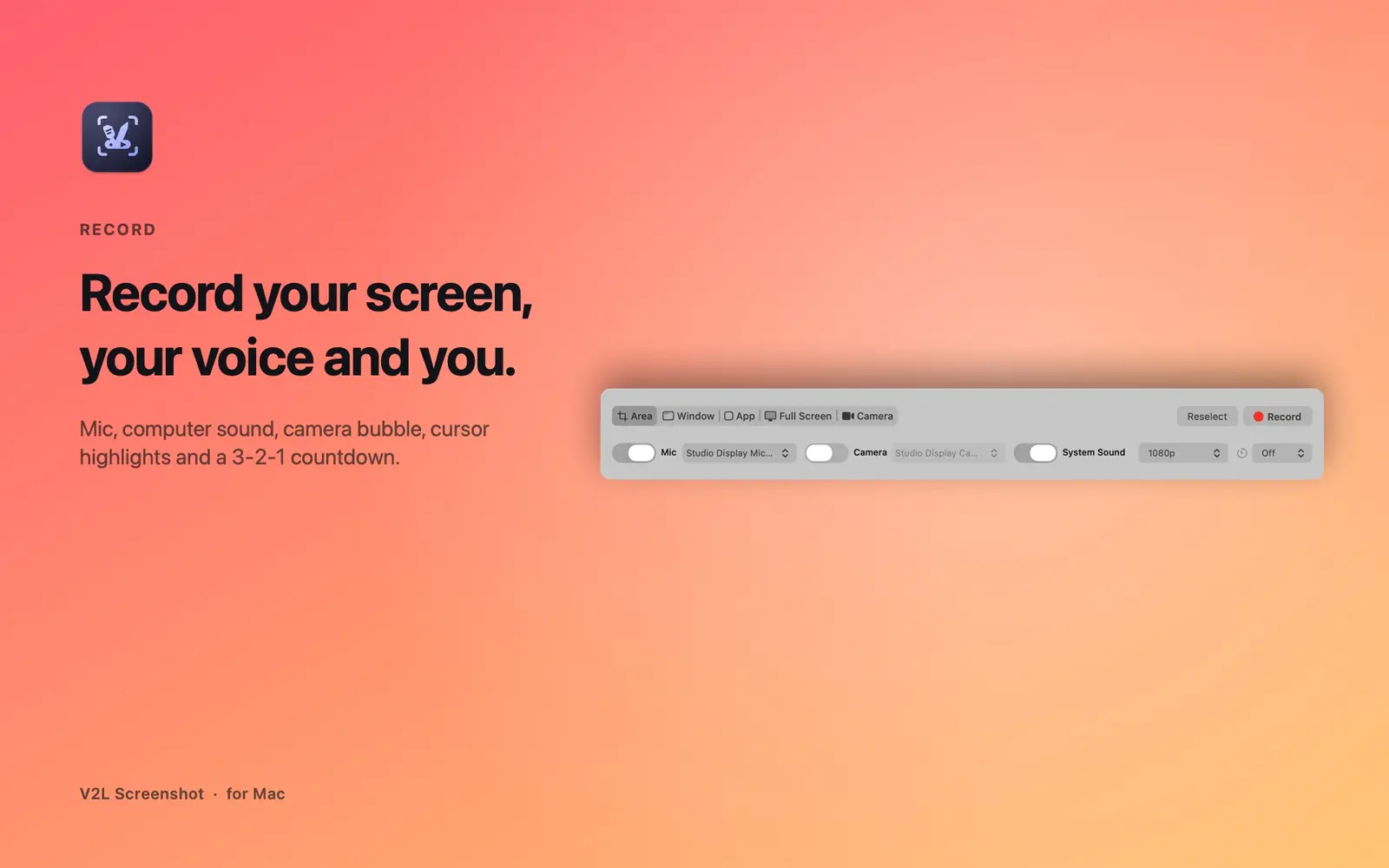
Record the whole screen, an area, a window, an app, or just your camera. Add computer sound and your microphone, and pause whenever you need to.
- Show your camera in the recording, and draw on the screen as you go.
- Quiet mode hides desktop icons while you record.
- Highlight your cursor and show click ripples.
- Save as a video file or turn a clip into a GIF.
 (opens the full-size picture in a new tab)
A simple video editor
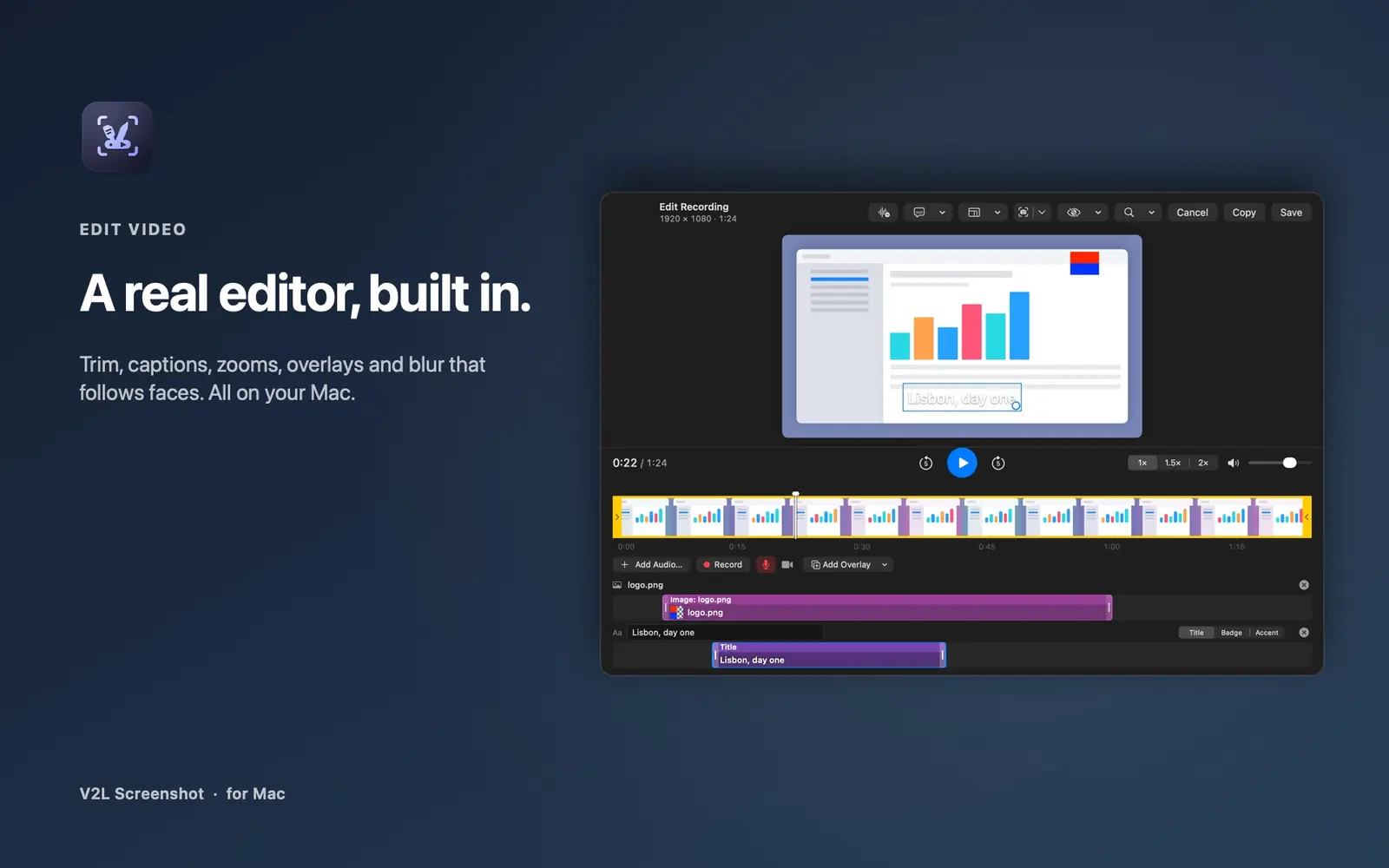
Open a recording, or any video, and make the quick fixes without a big editing app. It works on a copy, so your original stays untouched until you save.
- Trim, cut out a middle part, change speed and volume.
- Crop for vertical, square or wide sizes.
- Captions are written on your Mac, and you can remove silences and filler words.
- Add text, images, shapes or a voiceover, blur faces, and grab a still frame.
 (opens the full-size picture in a new tab)
Notes
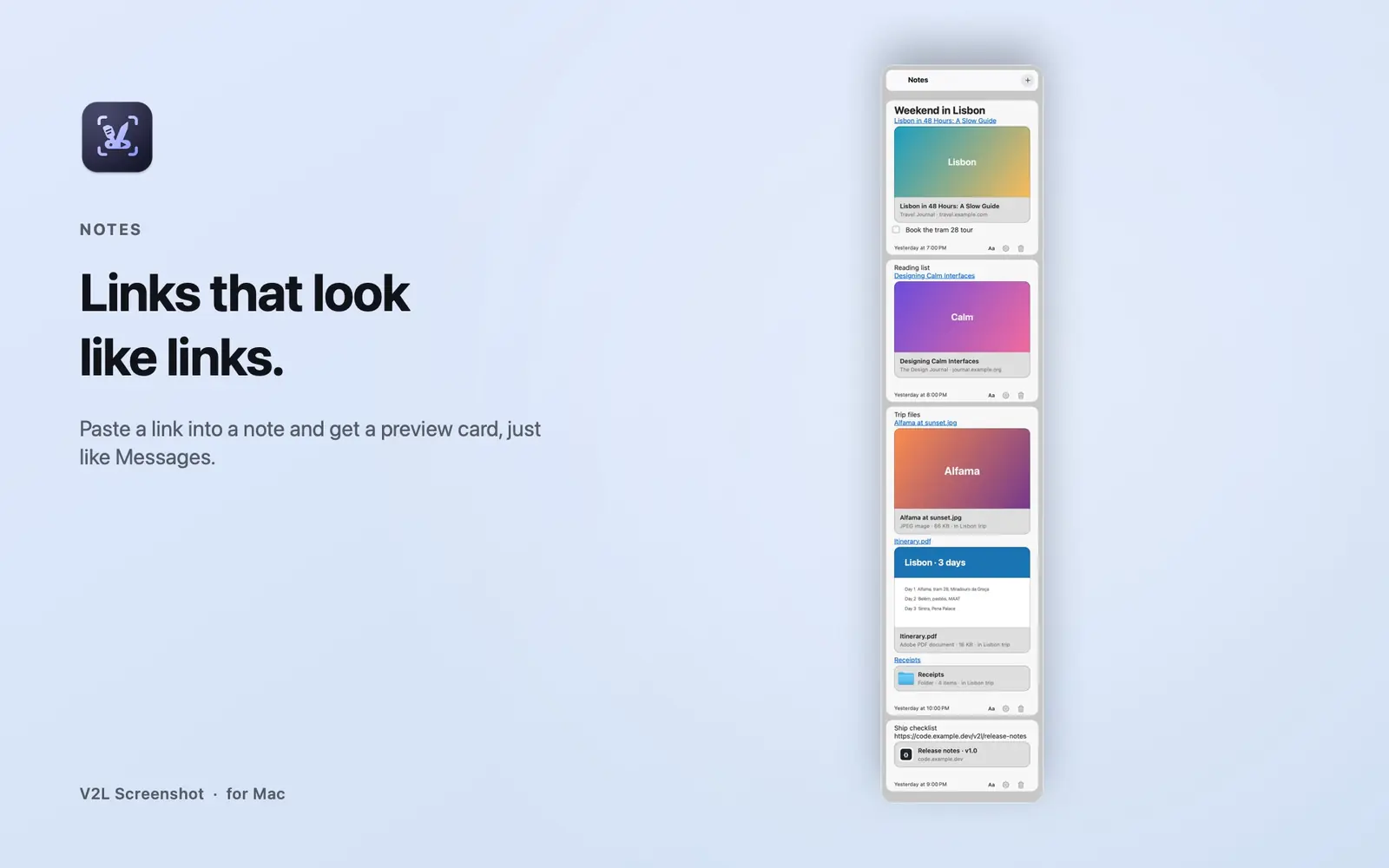
Notes open from the menu bar or a shortcut and save as you type. Each note is a plain file in a real folder, so you can still read them outside the app.
- Folders, pinning, themes and search, including words inside pictures.
- Paste or drop pictures, or send a screenshot straight into a note.
- Sync through your own iCloud Drive. If two Macs change the same note, both copies are kept.
 (opens the full-size picture in a new tab)
File and folder tidying
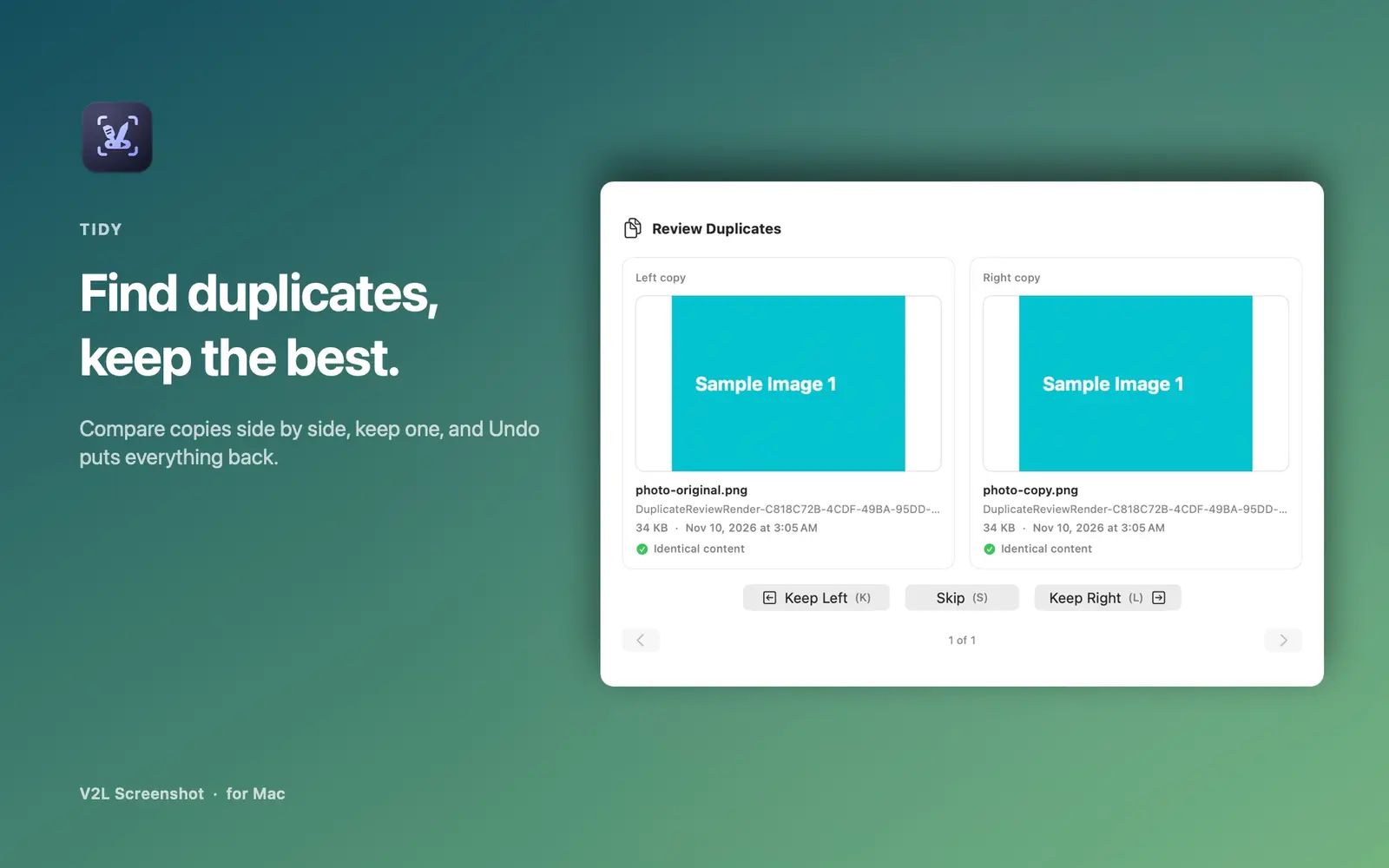
Point it at a folder and it shows a plan first. Nothing moves until you say so, and you can put everything back in a single step.
- Make your own rules, or describe one in a sentence.
- Find duplicate and similar photos and review them side by side before anything goes to the Trash.
- Optional smarter sorting and clearer file names, worked out on your Mac.
- Opens new zip files in Downloads for you, and suggests tidying when it gets crowded.
 (opens the full-size picture in a new tab)
Clipboard history
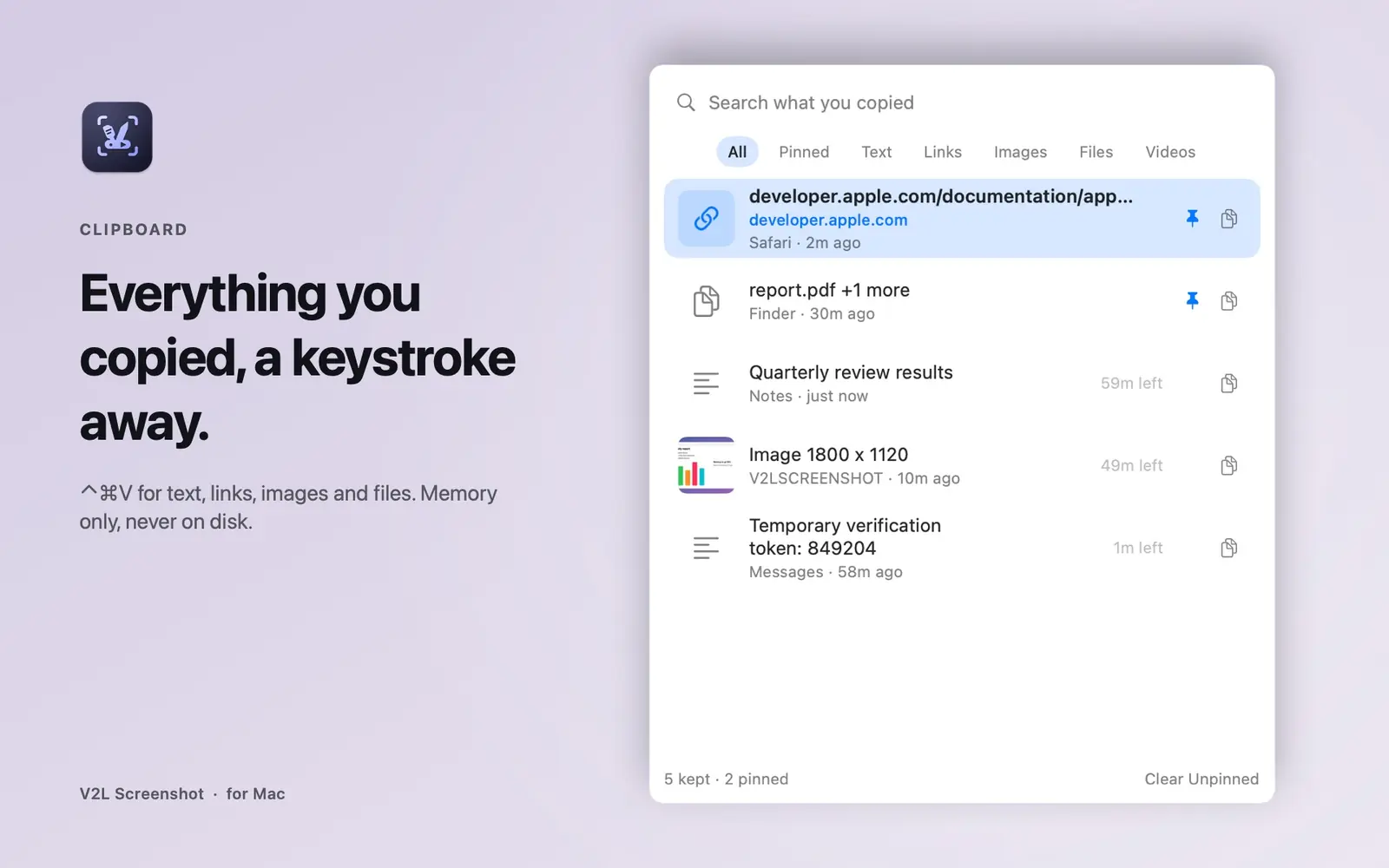
See what you copied recently (text, links, images and files), search it, and copy any of it back with a keystroke.
- Filter by kind, and pin the things you keep needing.
- Kept in memory only, and items expire on a timer you choose.
- Anything a password manager marks as secret is never kept.
Save videos from links
Paste a link and see the title and the choices the site really offers, then save the video or just the audio to a folder you pick.
- Choose a quality, or save a transcript instead of the video.
- Playlists ask first. Copy-protected streams are refused with a plain message.
- For videos you have the right to save.
 (opens the full-size picture in a new tab)
And the small helpers
The rest of the toolbox, in the same menu bar app.
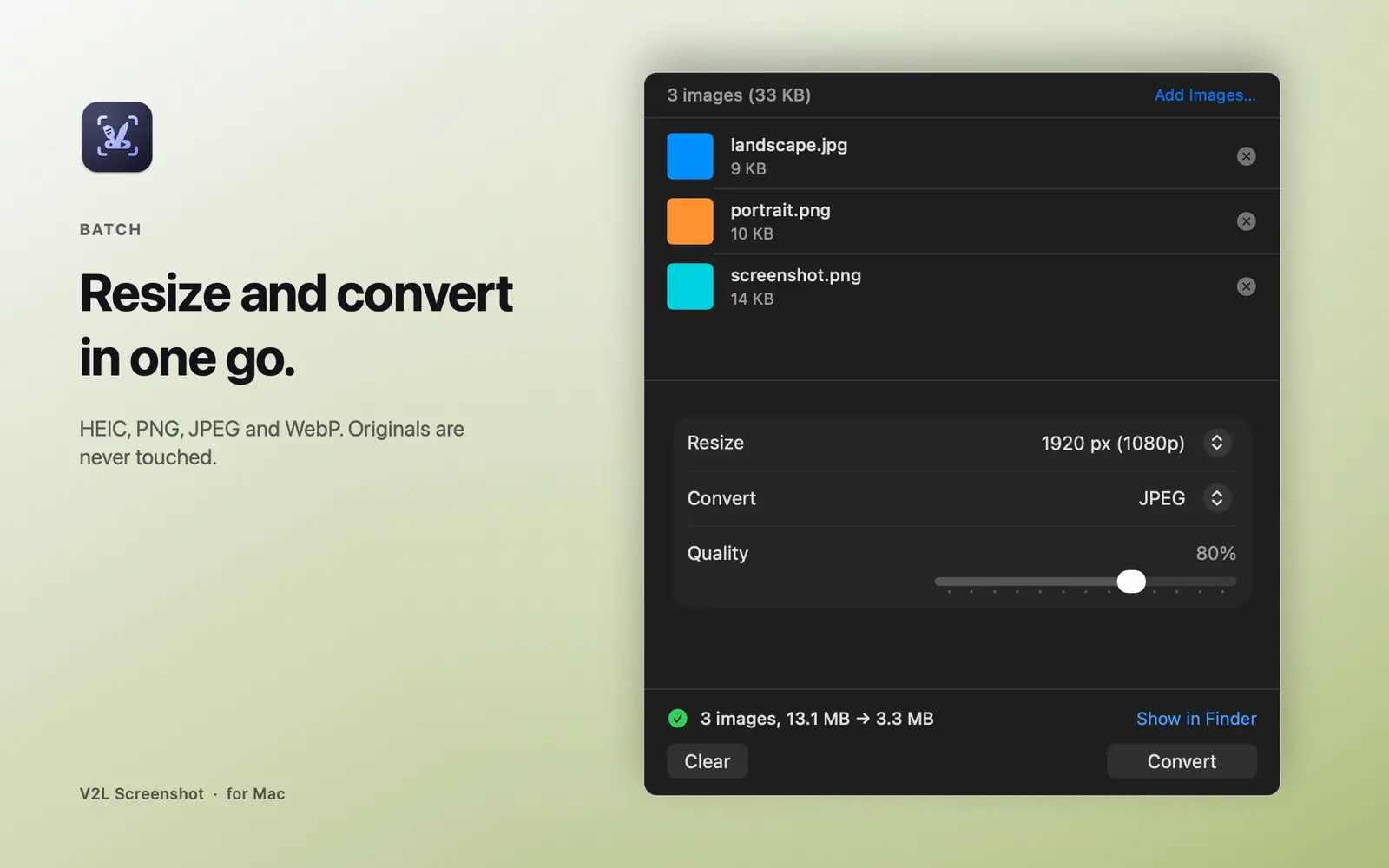
- Resize, convert and compress a batch of images at once. Your originals are never touched.
- Scan a document into one PDF, using your iPhone camera or an image.
- Find a screenshot you saved by typing words that were in it.
- Make a step-by-step guide from a series of shots.
- Pick a color from the screen or measure a distance.
Your Mac, your say
- Smart features such as describing a screenshot, naming files and writing captions run on your Mac by default, and nothing is sent anywhere for them.
- A few things do use the network, and only when you ask: syncing notes through your own iCloud Drive, looking up a page title when you paste a link into a note, saving a video from a link, and an AI provider you choose to turn on yourself in Settings.
- Saving videos from links may need a small helper tool that the app sets up the first time you use it. Some formats need one more optional tool, and Settings tells you if it is missing.
- It is still being built. What you see here is what the app does so far, and it may change before it is released.
A Mac. Screen recording needs macOS 15 or later, and macOS asks for permission the first time. Some smart features, such as writing summaries and smart file names, need a Mac with Apple Intelligence on macOS 26 or later. Without it, those features step aside instead of showing an error.
No screenshot is sent for the app to work. An unsaved screenshot stays in memory and removes itself after a short countdown. The few things that do use the network are listed under "Your Mac, your say" above.
It is made for videos you have the right to save. It shows only the choices the site really offers, and it refuses copy-protected streams.
No. The editor is for quick fixes: trims, cuts, captions, a few overlays and sizes. Bigger projects belong in a full editing app.
It is in the works, so there is no release date or price yet. Add your email below and we'll tell you when there is news.
Hear when it's ready
Add your email and we'll let you know when V2L Screenshot is ready.